Complete Android Subscription Guide with RevenueCat
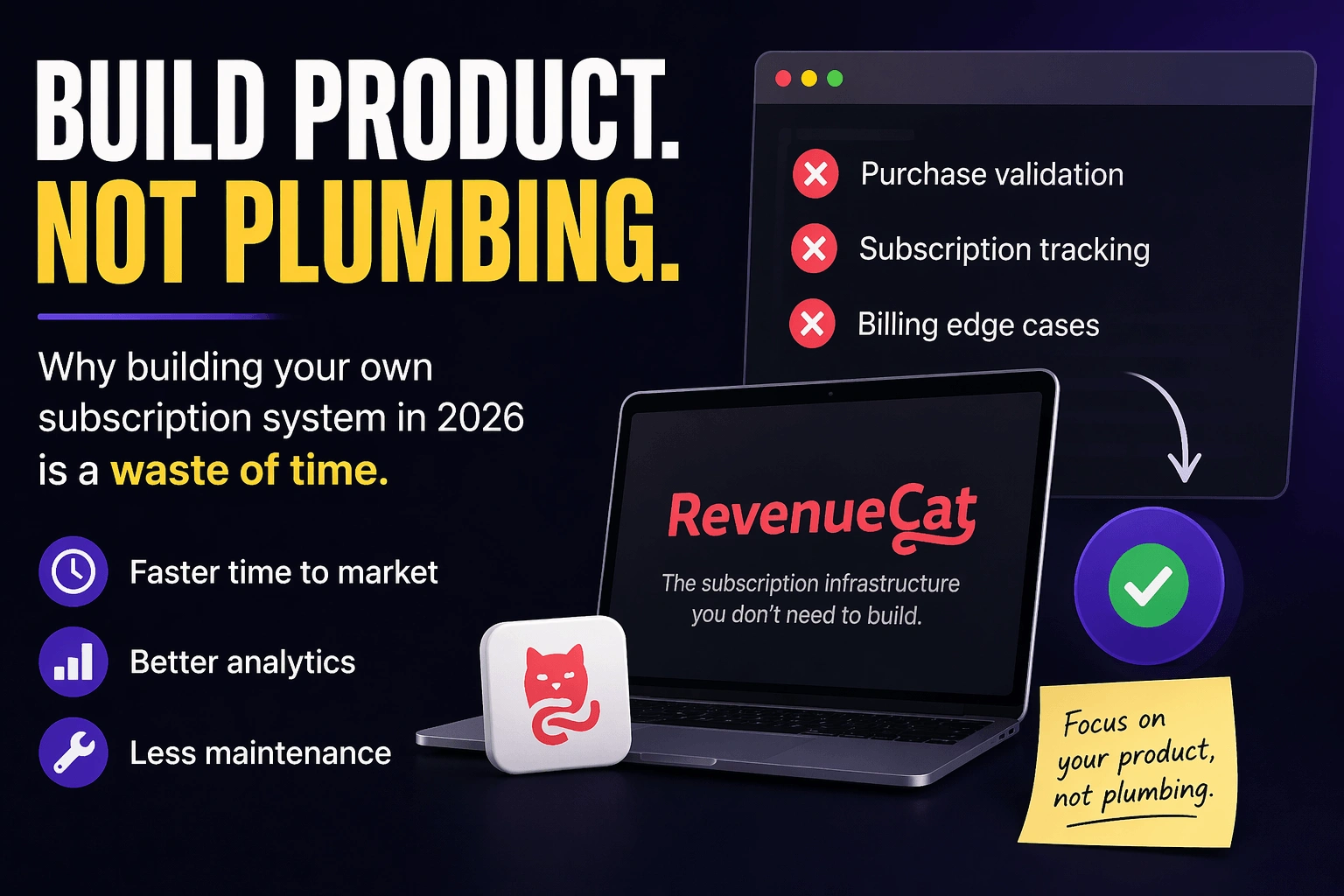
The Complete Guide to RevenueCat and Play Store Subscriptions for Android Apps
Introduction: Why Subscriptions Matter for Your Startup
As a startup founder building an Android app, you're probably thinking about how to monetize your product. Subscriptions are one of the most reliable revenue models - they provide predictable, recurring income instead of one-time payments. But here's the thing: implementing subscriptions correctly is surprisingly complex.
I've been building Android apps for years, and trust me, subscription management is harder than it looks. This guide will walk you through everything you need to know about Google Play Store subscriptions and why RevenueCat might save you months of development time.
Understanding Google Play Store Subscriptions
What Are Play Store Subscriptions?
Google Play Store subscriptions allow users to pay recurring fees (weekly, monthly, yearly) to access your app's premium features. Think of apps like Spotify, Netflix, or Duolingo Plus - they all use subscription models.
Key concepts you need to understand:
Subscription Products: These are the actual subscription plans you create (e.g., "Monthly Premium" or "Annual Pro")
Base Plans: The core subscription offering with a specific billing period
Offers: Special pricing like free trials, introductory prices, or promotional discounts
Grace Period: Time given to users when payment fails before canceling their subscription
Account Hold: Temporarily pausing subscription when payment fails
The Problem: Why Subscriptions Are Complicated
When I built my first subscription-based app, I thought it would be simple: user pays, they get access. Done. Wrong! Here's what I didn't anticipate:
Technical Challenges:
Handling subscription states (active, expired, in grace period, on hold)
Managing subscription upgrades and downgrades
Dealing with refunds and cancellations
Verifying purchases securely on your backend
Handling edge cases (payment failures, account issues, etc.)
Cross-platform support (what if you also have an iOS app?)
Testing subscription flows (you can't easily test real payments in development)
Business Challenges:
Tracking subscription analytics across platforms
Understanding churn and retention metrics
Managing promotional campaigns
Handling customer support issues ("Why was I charged?")
The code complexity is real. You need to implement Google Play Billing Library, set up a secure backend to verify purchases, create a database to track subscription states, handle webhooks from Google, and much more.
Enter RevenueCat: The Subscription Infrastructure Platform
What is RevenueCat?
RevenueCat is a service that sits between your app and the app stores (Google Play Store and Apple App Store). Think of it as a subscription management layer that handles all the complexity for you.
In simple terms: Instead of building all the subscription infrastructure yourself, you integrate RevenueCat's SDK, and they handle:
Purchase verification
Subscription status management
Cross-platform receipt validation
Analytics and reporting
Webhook management
Customer support tools
Why You NEED RevenueCat (As a Startup Founder)
Let me be blunt: building subscription infrastructure yourself will take you 2-3 months of development time, and you'll still have bugs. Here's why RevenueCat is worth it:
1. Time Savings (Your Most Valuable Resource)
As a startup founder, every week matters. RevenueCat reduces integration time from months to days. You can:
Integrate the SDK in a few hours
Have working subscriptions in a day or two
Focus on building your actual product features
2. Cross-Platform Made Easy
Planning an iOS version later? With RevenueCat, the same user can have subscriptions across both platforms, and you only need to check one source of truth for their subscription status.
3. Backend? Optional.
RevenueCat can verify purchases and manage subscription states for you. For an MVP, you might not even need a backend for subscription management - huge cost savings.
4. Superior Analytics
RevenueCat's dashboard shows you:
Monthly Recurring Revenue (MRR)
Active subscriptions
Churn rates
Trial conversion rates
Customer lifetime value
These metrics are crucial for understanding your business health.
5. Testing Made Simple
RevenueCat provides sandbox testing that actually works. You can test subscription flows, upgrades, cancellations - everything - without spending real money.
6. Customer Support Tools
When users email you saying "I paid but don't have premium," you can look them up in RevenueCat's dashboard and see exactly what happened. This alone saves hours of frustration.
7. It's Free to Start
RevenueCat is free up to $10,000 in tracked monthly revenue. For a starting startup, this means you pay nothing until you're making real money.
The Complete Implementation Process
Now let's get into the actual implementation. I'll walk you through every step as if you're starting from scratch.
Phase 1: Google Play Console Setup
Step 1: Create Your App in Google Play Console
Go to Google Play Console (play.google.com/console)
Create a new application
Fill in basic app details (name, description, category)
Upload your app bundle (even a basic version)
Step 2: Set Up Your Merchant Account
Go to "Setup" → "Merchant account"
Create or link a Google merchant account
This is where subscription payments will be deposited
Complete all required business information
Step 3: Create Subscription Products
Navigate to "Monetize" → "Subscriptions"
Click "Create subscription"
Configure your subscription:
Product ID: premium_monthly
Name: Premium Monthly
Description: Access to all premium features
Base Plan:
- Billing period: 1 month
- Price: $9.99 USD
Offers (optional):
- Free Trial: 7 days
- Introductory price: $4.99 for first month
Create multiple subscriptions if needed (e.g., monthly, annual)
Important Product ID naming conventions:
Use lowercase letters, numbers, and underscores only
Make them descriptive:
premium_monthly,premium_annualYou cannot change these IDs later, so choose wisely
Example: Create your second subscription (Annual)
Product ID: premium_annual
Name: Premium Annual
Description: Access to all premium features - Best Value!
Base Plan:
- Billing period: 12 months
- Price: $79.99 USD (saves 33% vs monthly)
Offers (optional):
- Free Trial: 7 days
Step 4: Configure Subscription Settings
Grace period: I recommend 7 days (gives users time to fix payment issues)
Account hold: Enable it (keeps subscription paused instead of canceling)
Resubscribe: Allow users to resubscribe after cancellation
Prepaid plans: Usually not needed for startups
Phase 2: RevenueCat Setup
Step 1: Create RevenueCat Account
Go to revenuecat.com
Sign up for a free account
Create a new project (name it after your app)
Step 2: Add Google Play Store Integration
In RevenueCat dashboard, go to "Project Settings"
Click "Google Play Store"
You'll need to set up a service account - this is the tricky part
Step 3: Create Google Service Account (Critical Step)
This allows RevenueCat to communicate with Google Play on your behalf.
Go to Google Cloud Console (console.cloud.google.com)
Create a new project (or select existing)
Enable "Google Play Android Developer API"
Go to "IAM & Admin" → "Service Accounts"
Create a new service account:
Name: "RevenueCat Service Account"
Role: "Service Account User"
Create a JSON key for this service account
Download the JSON file
Go back to Google Play Console:
"Setup" → "API Access"
Grant access to the service account you just created
Give it "Admin (all permissions)" - necessary for RevenueCat
Upload the JSON file to RevenueCat dashboard
Step 4: Configure Products in RevenueCat
Go to RevenueCat → "Products"
Add your Google Play subscription products:
Click "Add Product"
Enter your Product ID exactly as in Google Play (e.g.,
premium_monthly)Select "Subscription" type
Select "Google Play Store" as the store
Repeat for all your products:
premium_monthlypremium_annualAny other subscription tiers you created
Important: The Product IDs in RevenueCat MUST exactly match what you created in Google Play Console.
Step 5: Create Entitlements
Entitlements are the features users get with their subscription.
Go to "Entitlements" → "New Entitlement"
Create one called "premium" (or whatever makes sense for your app)
Attach your subscription products to this entitlement:
Click on the "premium" entitlement
Attach
premium_monthlyAttach
premium_annualAny product that grants premium access should be attached here
Why entitlements? They decouple your app's features from specific products. You can change pricing or products without changing app code. In your code, you simply check if the user has the "premium" entitlement, not which specific product they bought.
Step 6: Create Offerings (CRITICAL STEP)
This is where you define what subscription packages users will see in your app. Without this step, your app won't be able to display any subscriptions!
What are Offerings?
Offerings are how you organize and present subscription packages to users. Think of them as marketing campaigns for your subscriptions.
Creating Your First Offering:
In RevenueCat dashboard, click "Offerings" in the left sidebar
Click "+ New Offering"
Configure the offering:
Offering Identifier: default
Display Name: Default Offering
Description: Standard subscription options for all users
Important: The identifier "default" is special - this is what RevenueCat returns when you call offerings.current in your code.
Click "Create"
Step 7: Add Packages to Your Offering
Now you need to add packages (individual subscription options) to this offering.
Inside your "default" offering, click "+ Add Package"
Package 1 - Annual (Add this first - it's usually the best value):
Package Identifier: $rc_annual
(Use this exact identifier - it's a RevenueCat predefined constant)
Product: premium_annual (select from dropdown)
Click "+ Add Package" again
Package 2 - Monthly:
Package Identifier: $rc_monthly
Product: premium_monthly
Why use predefined identifiers like $rc_monthly and $rc_annual?
RevenueCat has built-in identifiers that make it easier to access packages in your code:
val monthlyPackage = offering.monthly // Easy!
val annualPackage = offering.annual // Easy!
Available predefined package identifiers:
$rc_monthly- Monthly subscription$rc_annual- Annual subscription$rc_six_month- 6-month subscription$rc_three_month- 3-month subscription$rc_two_month- 2-month subscription$rc_weekly- Weekly subscription$rc_lifetime- One-time purchase for lifetime access
Step 8: Set Package Order and Make Offering Current
Reorder packages by dragging them. Recommended order:
Annual (best value - show this first)
Monthly (most flexible)
Toggle "Make this the current offering" to ON
This makes it the default offering returned by
offerings.currentin your app
Click "Save"
Your offering is now live! Here's what you've created:
Offering: "default" (current)
├── Package: $rc_annual
│ └── Product: premium_annual → Google Play (12 months, $79.99)
│
└── Package: $rc_monthly
└── Product: premium_monthly → Google Play (1 month, $9.99)
Phase 3: Android App Implementation
Step 1: Add Dependencies
In your app/build.gradle:
dependencies {
// RevenueCat SDK
implementation 'com.revenuecat.purchases:purchases:7.11.1'
// Required for subscription features
implementation 'com.android.billingclient:billing:6.1.0'
}
Don't forget to sync your project after adding these dependencies.
Step 2: Initialize RevenueCat (In Your Application Class)
Create or modify your Application class:
import android.app.Application
import com.revenuecat.purchases.LogLevel
import com.revenuecat.purchases.Purchases
import com.revenuecat.purchases.PurchasesConfiguration
class MyApplication : Application() {
override fun onCreate() {
super.onCreate()
// Initialize RevenueCat
Purchases.configure(
PurchasesConfiguration.Builder(
context = this,
apiKey = "your_revenuecat_api_key" // Get this from RevenueCat dashboard
).build()
)
// Optional: Enable debug logs during development
Purchases.logLevel = LogLevel.DEBUG
}
}
Don't forget to add your Application class to AndroidManifest.xml:
<application
android:name=".MyApplication"
android:icon="@mipmap/ic_launcher"
android:label="@string/app_name"
...>
<!-- Your activities here -->
</application>
Step 3: Get Your RevenueCat API Key
Go to RevenueCat dashboard
Click "Project Settings" (gear icon)
Go to "API Keys"
Copy the "Public SDK Key" for Google Play Store
Replace
"your_revenuecat_api_key"in your code above
Warning: Never use the Secret Key in your app - it should only be used on your backend server!
Step 4: Identify Users (Important!)
After a user logs in or signs up, identify them to RevenueCat:
import com.revenuecat.purchases.Purchases
// After user logs in or signs up
fun identifyUser(userId: String) {
Purchases.sharedInstance.logIn(
appUserID = userId, // Your backend user ID (e.g., "user_12345")
onSuccess = { customerInfo, created ->
// User successfully identified
if (created) {
Log.d("RevenueCat", "New customer created: ${customerInfo.originalAppUserId}")
} else {
Log.d("RevenueCat", "Existing customer logged in: ${customerInfo.originalAppUserId}")
}
// Check if they have premium access
val isPremium = customerInfo.entitlements["premium"]?.isActive == true
if (isPremium) {
navigateToPremiumContent()
}
},
onError = { error ->
Log.e("RevenueCat", "Login error: ${error.message}")
}
)
}
Why identify users?
This links purchases to your user accounts. Benefits:
If a user reinstalls the app, their subscription is automatically restored
If they switch devices, their subscription follows them
You can look up their purchase history in RevenueCat dashboard
Subscriptions work across iOS and Android for the same user
If you don't have user accounts yet:
// RevenueCat will generate an anonymous ID
// But you won't be able to look up users or sync across devices
Purchases.sharedInstance.logIn(
appUserID = UUID.randomUUID().toString(),
onSuccess = { customerInfo, _ -> },
onError = { error -> }
)
Step 5: Display Available Subscriptions (Create Paywall Screen)
Create a new Activity or Fragment for your paywall:
import android.os.Bundle
import android.util.Log
import android.widget.Toast
import androidx.appcompat.app.AppCompatActivity
import com.revenuecat.purchases.Offerings
import com.revenuecat.purchases.Package
import com.revenuecat.purchases.Purchases
class PaywallActivity : AppCompatActivity() {
private var offerings: Offerings? = null
override fun onCreate(savedInstanceState: Bundle?) {
super.onCreate(savedInstanceState)
setContentView(R.layout.activity_paywall)
loadOfferings()
}
private fun loadOfferings() {
// Show loading state
showLoading(true)
Purchases.sharedInstance.getOfferings(
onSuccess = { offerings ->
this.offerings = offerings
showLoading(false)
// Get the current offering (the one marked as "current" in dashboard)
val currentOffering = offerings.current
if (currentOffering != null) {
// METHOD 1: Access packages by predefined identifiers (Recommended)
val annualPackage = currentOffering.annual
val monthlyPackage = currentOffering.monthly
// Display them in your UI
if (annualPackage != null) {
displayPackage(annualPackage, isRecommended = true)
}
if (monthlyPackage != null) {
displayPackage(monthlyPackage, isRecommended = false)
}
// METHOD 2: Loop through all available packages
currentOffering.availablePackages.forEach { package ->
Log.d("Package", """
Identifier: ${package.identifier}
Title: ${package.product.title}
Price: ${package.product.price.formatted}
Period: ${package.product.period}
Free Trial: ${package.product.freeTrialPeriod}
""".trimIndent())
}
} else {
// No current offering found
showError("No subscription options available. Please check your RevenueCat setup.")
}
},
onError = { error ->
showLoading(false)
Log.e("RevenueCat", "Error fetching offerings: ${error.message}")
showError("Failed to load subscriptions. Please try again.")
}
)
}
private fun displayPackage(package: Package, isRecommended: Boolean) {
val product = package.product
// Extract product information
val price = product.price.formatted // e.g., "$9.99"
val title = product.title // e.g., "Premium Monthly"
val description = product.description
// Format the billing period
val period = when {
product.period?.months == 1 -> "per month"
product.period?.years == 1 -> "per year"
product.period?.weeks == 1 -> "per week"
else -> "subscription"
}
// Check if there's a free trial
val trialText = product.freeTrialPeriod?.let { trial ->
val days = trial.days
"Start your $days-day free trial"
}
// Calculate savings (for annual vs monthly)
if (package.identifier == "${"$"}rc_annual") {
val monthlyPrice = product.price.amountMicros / 12_000_000.0
val savings = ((9.99 - monthlyPrice) / 9.99 * 100).toInt()
Log.d("Savings", "Save $savings% with annual plan")
}
// Now display this in your UI
// Create a card/button for this subscription option
// Wire up click listener to purchasePackage(package)
Log.d("Display", "Showing package: $title at $price $period")
}
private fun showLoading(show: Boolean) {
// Show/hide loading spinner
}
private fun showError(message: String) {
Toast.makeText(this, message, Toast.LENGTH_LONG).show()
}
}
Step 6: Handle Purchases
Add this function to your PaywallActivity:
private fun purchasePackage(package: Package) {
Purchases.sharedInstance.purchase(
activity = this,
packageToPurchase = package,
onSuccess = { storeTransaction, customerInfo ->
// Purchase successful!
Log.d("Purchase", "Transaction ID: ${storeTransaction.transactionIdentifier}")
// Check if user now has premium access
val isPremium = customerInfo.entitlements["premium"]?.isActive == true
if (isPremium) {
// Grant access to premium features
Toast.makeText(
this,
"Welcome to Premium! 🎉",
Toast.LENGTH_LONG
).show()
// Navigate to premium content
navigateToPremiumContent()
// Close the paywall
finish()
}
},
onError = { error, userCancelled ->
if (userCancelled) {
// User pressed back or cancelled the purchase flow
Log.d("RevenueCat", "User cancelled purchase")
Toast.makeText(this, "Purchase cancelled", Toast.LENGTH_SHORT).show()
} else {
// An error occurred
Log.e("RevenueCat", "Purchase error: ${error.message}")
Log.e("RevenueCat", "Underlying error: ${error.underlyingErrorMessage}")
showError("Purchase failed: ${error.underlyingErrorMessage ?: error.message}")
}
}
)
}
private fun navigateToPremiumContent() {
// Navigate to your main app or premium features
// For example:
// startActivity(Intent(this, MainActivity::class.java))
}
Common purchase errors and how to handle them:
when {
error.message.contains("authentication") -> {
showError("Please sign in to Google Play and try again")
}
error.message.contains("network") -> {
showError("No internet connection. Please check your connection and try again")
}
error.message.contains("already owned") -> {
// User already owns this subscription
// Try to restore purchases
restorePurchases()
}
else -> {
showError("Purchase failed. Please try again later.")
}
}
Step 7: Check Subscription Status
Before showing premium content, always verify the user has an active subscription:
fun checkSubscriptionStatus() {
Purchases.sharedInstance.getCustomerInfo(
onSuccess = { customerInfo ->
// Check the "premium" entitlement we created in RevenueCat
val premiumEntitlement = customerInfo.entitlements["premium"]
val isPremium = premiumEntitlement?.isActive == true
if (isPremium) {
// User has active subscription
Log.d("Premium", "User has premium access")
// Optional: Check expiration date
val expirationDate = premiumEntitlement?.expirationDate
Log.d("Premium", "Expires: $expirationDate")
// Optional: Check which product they're subscribed to
val productId = premiumEntitlement?.productIdentifier
Log.d("Premium", "Subscribed to: $productId")
// Show premium content
showPremiumContent()
} else {
// User doesn't have subscription
Log.d("Premium", "User is not premium")
// Check if there's a billing issue
if (premiumEntitlement?.billingIssueDetectedAt != null) {
showBillingIssueDialog()
} else {
// Show paywall
showPaywall()
}
}
},
onError = { error ->
Log.e("RevenueCat", "Error checking status: ${error.message}")
// Default to non-premium to be safe
// Don't grant premium access if we can't verify
showPaywall()
}
)
}
private fun showPremiumContent() {
// Hide ads, unlock features, etc.
}
private fun showPaywall() {
// Show subscription purchase screen
startActivity(Intent(this, PaywallActivity::class.java))
}
private fun showBillingIssueDialog() {
// Show dialog explaining payment failed
// Offer to update payment method
AlertDialog.Builder(this)
.setTitle("Subscription Payment Issue")
.setMessage("We couldn't process your subscription payment. Please update your payment method to continue enjoying premium features.")
.setPositiveButton("Update Payment") { _, _ ->
// Redirect to Google Play subscription management
val intent = Intent(Intent.ACTION_VIEW).apply {
data = Uri.parse("https://play.google.com/store/account/subscriptions")
}
startActivity(intent)
}
.setNegativeButton("Later", null)
.show()
}
When to call checkSubscriptionStatus:
When your app launches (in MainActivity.onCreate)
When user navigates to premium content
After a purchase completes
When app comes to foreground (onResume)
Periodically to sync latest status (e.g., every 5 minutes)
Example in MainActivity:
class MainActivity : AppCompatActivity() {
override fun onCreate(savedInstanceState: Bundle?) {
super.onCreate(savedInstanceState)
setContentView(R.layout.activity_main)
// Check subscription status on app launch
checkSubscriptionStatus()
}
override fun onResume() {
super.onResume()
// Refresh subscription status when app comes to foreground
checkSubscriptionStatus()
}
}
Step 8: Restore Purchases
Users who reinstall your app or get a new device need to restore their purchases:
fun restorePurchases() {
// Show loading indicator
showLoading(true)
Purchases.sharedInstance.restorePurchases(
onSuccess = { customerInfo ->
showLoading(false)
val isPremium = customerInfo.entitlements["premium"]?.isActive == true
if (isPremium) {
Toast.makeText(
this,
"Subscription restored successfully! ✓",
Toast.LENGTH_LONG
).show()
showPremiumContent()
} else {
Toast.makeText(
this,
"No active subscriptions found",
Toast.LENGTH_LONG
).show()
}
},
onError = { error ->
showLoading(false)
Log.e("RevenueCat", "Restore error: ${error.message}")
Toast.makeText(
this,
"Failed to restore purchases. Please try again.",
Toast.LENGTH_LONG
).show()
}
)
}
Add a "Restore Purchases" button in your paywall:
<!-- In your paywall layout XML -->
<Button
android:id="@+id/btnRestorePurchases"
android:layout_width="wrap_content"
android:layout_height="wrap_content"
android:text="Restore Purchases"
android:textColor="@color/text_secondary"
style="?android:attr/borderlessButtonStyle" />
// In your PaywallActivity
btnRestorePurchases.setOnClickListener {
restorePurchases()
}
Important: Google Play policy requires you to provide a way for users to restore purchases!
Phase 4: Testing Your Implementation
Step 1: Use Google Play License Testing
Go to Google Play Console
Navigate to "Setup" → "License Testing"
Add your Gmail account (the one you use for testing)
Click "Save"
Now you can make test purchases without being charged real money!
Step 2: Test Purchase Flow on Real Device
Important: You MUST test on a real Android device. Emulators often have issues with Google Play billing.
Build your app in debug mode
Install it on your test device (make sure you're signed in with your test Gmail account)
Navigate to your paywall
Try purchasing a subscription
Complete the Google Play purchase flow
Verify that premium access is granted immediately
Step 3: Verify in RevenueCat Dashboard
After making a test purchase:
Go to RevenueCat dashboard
Click "Customers"
Search for your user ID
You should see:
Active subscription
Purchase date
Expiration date
Which product they purchased
Step 4: Test Edge Cases
Test these scenarios:
Purchase Cancellation:
Start a purchase but press back button
App should handle gracefully (no crash)
Subscription Status Check:
Close app completely
Reopen app
Verify subscription status is still recognized
Restore Purchases:
Uninstall app
Reinstall app
Login with same account
Click "Restore Purchases"
Verify subscription is restored
Offline Mode:
Turn off internet
Open app
App should remember subscription status (don't lock out premium users!)
Upgrade/Downgrade:
Subscribe to monthly
Then try to purchase annual
Google Play will handle the upgrade
Step 5: Test Subscription Expiration
In RevenueCat dashboard:
Go to your test customer
You can manually expire subscriptions to test what happens
Or use Google Play Console sandbox to create subscriptions that expire quickly (e.g., 5-minute subscriptions for testing)
Step 6: Monitor Logs
During testing, watch your Logcat for:
RevenueCat initialization
Offering fetch success/errors
Purchase success/errors
Subscription status checks
// Make sure you have debug logging enabled during development
Purchases.logLevel = LogLevel.DEBUG
Phase 5: Production Launch Checklist
Before releasing to production, verify every item on this checklist:
Google Play Console:
✅ Remove test accounts from "License Testing" (so real users get charged)
✅ Verify all subscription products are ACTIVE (not in draft state)
✅ Double-check pricing in all countries you're launching in
✅ Verify grace period and account hold settings
✅ Set up subscription notifications (optional but recommended)
✅ Test on clean device with real Google account (not your developer account)
✅ Verify your merchant account is fully set up to receive payments
RevenueCat Dashboard:
✅ Verify you're using the PRODUCTION API key (not sandbox)
✅ Double-check all products are linked correctly
✅ Verify entitlements are configured correctly
✅ Confirm offerings are set up and marked as "current"
✅ Set up webhooks if you have a backend (optional)
✅ Configure email alerts for important events (recommended)
App Code:
✅ Remove or disable debug logging (
LogLevel.DEBUG→LogLevel.INFO)✅ Test with production API key before release
✅ Handle all error cases gracefully (no crashes)
✅ Test on multiple Android versions (minimum: Android 5.0+)
✅ Verify subscription status check happens on app launch
✅ Ensure "Restore Purchases" button is visible and working
✅ Test purchase flow end-to-end on production build
Legal/Business Compliance:
✅ Add subscription terms to your privacy policy
✅ Clearly display auto-renewal information in your paywall
✅ Show cancellation instructions (link to Google Play subscriptions)
✅ Display refund policy
✅ Comply with Google Play's subscription policies
✅ Include contact information for customer support
Example Subscription Disclosure (Add to your paywall):
Payment will be charged to Google Play Account at confirmation of purchase.
Subscription automatically renews unless auto-renew is turned off at least
24 hours before the end of the current period. Account will be charged for
renewal within 24 hours prior to the end of the current period.
Subscriptions may be managed and auto-renewal may be turned off by going to
Account Settings after purchase.
Privacy Policy: [your-app.com/privacy]
Terms of Service: [your-app.com/terms]
Pro Tip: Create a pre-launch test checklist document and check off each item with a teammate. Missing even one item can cause issues for your users!
Advanced Topics
Managing Subscription Lifecycle
Handling Upgrades/Downgrades:
RevenueCat makes this incredibly simple:
// User is currently on monthly, wants to upgrade to annual
fun upgradeToAnnual(annualPackage: Package) {
// Just purchase the new package
// RevenueCat and Google Play automatically handle the upgrade
Purchases.sharedInstance.purchase(
activity = this,
packageToPurchase = annualPackage,
onSuccess = { _, customerInfo ->
// Upgrade successful!
// User is credited for unused time on monthly subscription
// New annual subscription starts immediately
Toast.makeText(
this,
"Upgraded to Annual! Thanks for your support 🎉",
Toast.LENGTH_LONG
).show()
},
onError = { error, _ ->
Log.e("Upgrade", "Error: ${error.message}")
}
)
}
Google Play automatically handles:
Proration (user gets credited for unused time)
Replacement of old subscription
Billing cycle adjustment
Different proration modes:
Immediate upgrade: User gets new subscription immediately, credited for old one
Deferred upgrade: New subscription starts when old one expires
You can configure this in Google Play Console under subscription settings
Handling Billing Issues:
fun checkForBillingIssues() {
Purchases.sharedInstance.getCustomerInfo { customerInfo ->
val premiumEntitlement = customerInfo.entitlements["premium"]
when {
// Subscription is active and healthy
premiumEntitlement?.isActive == true &&
premiumEntitlement.billingIssueDetectedAt == null -> {
Log.d("Billing", "All good!")
showPremiumContent()
}
// Payment failed but subscription not cancelled yet (grace period)
premiumEntitlement?.billingIssueDetectedAt != null -> {
Log.w("Billing", "Payment issue detected!")
// Show non-intrusive warning
showBillingIssueWarning()
// Still grant access during grace period
if (premiumEntitlement.isActive) {
showPremiumContent()
}
}
// Subscription expired or cancelled
else -> {
Log.d("Billing", "No active subscription")
showPaywall()
}
}
}
}
private fun showBillingIssueWarning() {
// Show a gentle reminder banner at top of app
Snackbar.make(
findViewById(android.R.id.content),
"Payment issue detected. Please update your payment method to continue premium access.",
Snackbar.LENGTH_LONG
).setAction("Fix") {
// Redirect to Google Play subscriptions
val intent = Intent(Intent.ACTION_VIEW).apply {
data = Uri.parse("https://play.google.com/store/account/subscriptions")
}
startActivity(intent)
}.show()
}
Understanding subscription states:
val entitlement = customerInfo.entitlements["premium"]
// Check various states
val isActive = entitlement?.isActive == true
val willRenew = entitlement?.willRenew == true
val expirationDate = entitlement?.expirationDate
val billingIssue = entitlement?.billingIssueDetectedAt
val unsubscribeDetectedAt = entitlement?.unsubscribeDetectedAt
when {
isActive && willRenew -> {
// Happy subscriber - subscription will auto-renew
statusText = "Premium Member"
renewalText = "Renews on ${formatDate(expirationDate)}"
}
isActive && !willRenew -> {
// User cancelled but subscription is still active until expiration
statusText = "Premium Member (Cancelled)"
renewalText = "Access until ${formatDate(expirationDate)}"
showResubscribeOption()
}
!isActive && billingIssue != null -> {
// Payment failed, subscription expired
statusText = "Payment Issue"
renewalText = "Please update payment method"
}
!isActive -> {
// Not subscribed
statusText = "Free Member"
showSubscribeButton()
}
}
Analytics and Webhooks
RevenueCat Dashboard Analytics:
Once you have paying users, monitor these key metrics weekly:
Monthly Recurring Revenue (MRR):
Track growth month-over-month
Set revenue goals
Active Subscriptions:
How many paying subscribers do you have?
Which plan is most popular?
Trial Conversion Rate:
What % of trial users convert to paying?
Industry average: 5-40% depending on app
Churn Rate:
What % of subscribers cancel each month?
Aim for <5% monthly churn for healthy SaaS business
Customer Lifetime Value (LTV):
Average revenue per customer over their lifetime
Use this to determine how much you can spend on user acquisition
Setting Up Webhooks (Optional but Powerful):
If you have a backend server, you can receive real-time notifications:
In RevenueCat dashboard → "Integrations" → "Webhooks"
Add your server URL (e.g.,
https://your-api.com/webhooks/revenuecat)Select events to receive:
INITIAL_PURCHASE- New subscription startedRENEWAL- Subscription renewedCANCELLATION- User cancelledBILLING_ISSUE- Payment failedPRODUCT_CHANGE- User upgraded/downgraded
Example webhook handler (Node.js/Express):
app.post('/webhooks/revenuecat', async (req, res) => {
const event = req.body;
switch(event.type) {
case 'INITIAL_PURCHASE':
// New subscriber!
await sendWelcomeEmail(event.app_user_id);
await grantPremiumAccess(event.app_user_id);
break;
case 'CANCELLATION':
// User cancelled
await sendWinbackEmail(event.app_user_id);
break;
case 'BILLING_ISSUE':
// Payment failed
await sendPaymentReminderEmail(event.app_user_id);
break;
}
res.status(200).send('OK');
});
Multiple Offerings for A/B Testing
You can create multiple offerings to test different pricing strategies:
Offering 1: "default" (for regular users)
- Monthly: $9.99
- Annual: $79.99 (save 33%)
Offering 2: "premium_trial" (for new users)
- Monthly: 7-day free trial, then $9.99
- Annual: 7-day free trial, then $79.99
Offering 3: "winback" (for users who cancelled)
- Monthly: $6.99 (special 30% discount!)
- Annual: $59.99
How to show different offerings:
fun showAppropriateOffering(userStatus: UserStatus) {
Purchases.sharedInstance.getOfferings { offerings ->
val offeringToShow = when (userStatus) {
UserStatus.NEW_USER -> {
// Show trial offering to new users
offerings.getOffering("premium_trial") ?: offerings.current
}
UserStatus.CANCELLED -> {
// Show winback offer to users who cancelled
offerings.getOffering("winback") ?: offerings.current
}
else -> {
// Show default offering to everyone else
offerings.current
}
}
displayOffering(offeringToShow)
}
}
Track which offering converted:
// When purchase succeeds
onSuccess = { _, customerInfo ->
// Log which offering the user saw
analytics.track("subscription_purchased", mapOf(
"offering_id" to offeringId,
"package_id" to package.identifier,
"price" to package.product.price
))
}
This lets you measure which offerings convert best!
Common Pitfalls and How to Avoid Them
1. Not Testing on Real Devices
Mistake: Only testing on Android emulators
Problem: Emulators often have issues with Google Play Services, billing library, and payment flows. Your subscription might work in emulator but fail on real devices.
Solution:
Always test on real Android devices
Use multiple devices if possible (different manufacturers, Android versions)
Test with a clean Google account (not your developer account)
2. Forgetting to Identify Users
Mistake: Not calling Purchases.sharedInstance.logIn(userId)
Problem:
Purchases aren't linked to user accounts
Users lose subscriptions when they reinstall
Can't look up customers in dashboard
Subscriptions don't sync across devices
Solution:
// ALWAYS identify users after login/signup
Purchases.sharedInstance.logIn(userId) { customerInfo, created ->
// Now purchases are linked to this user
}
3. Caching Subscription Status Too Long
Mistake: Checking subscription status once and caching it forever
Problem: User's subscription might expire, they might refund, or payment might fail - but your app still shows them as premium.
Solution:
// Check subscription status:
// - On app launch
// - On app resume (foreground)
// - Before accessing premium features
// - Periodically (every 5-10 minutes while app is open)
override fun onResume() {
super.onResume()
refreshSubscriptionStatus()
}
4. Poor Error Handling
Mistake: Not handling network errors or purchase failures gracefully
// BAD - App crashes if purchase fails
Purchases.sharedInstance.purchase(this, package) { _, _ ->
navigateToPremium() // What if this fails?
}
// GOOD - Proper error handling
Purchases.sharedInstance.purchase(
activity = this,
packageToPurchase = package,
onSuccess = { _, customerInfo ->
if (customerInfo.entitlements["premium"]?.isActive == true) {
navigateToPremium()
}
},
onError = { error, userCancelled ->
if (!userCancelled) {
showError("Purchase failed: ${error.message}")
logErrorToAnalytics(error)
}
}
)
5. Not Showing Subscription Terms
Mistake: Not displaying required subscription disclosures
Problem: Google Play will reject your app or suspend it
Solution: Always show on your paywall:
Auto-renewal information
How to cancel
Privacy policy link
Terms of service link
Price and billing period
<!-- Add to bottom of paywall -->
<TextView
android:layout_width="match_parent"
android:layout_height="wrap_content"
android:text="Payment charged to Google Play at confirmation. Auto-renews unless cancelled 24h before period ends. Manage in Account Settings."
android:textSize="12sp"
android:textColor="@color/text_secondary" />
6. Ignoring Subscription Analytics
Mistake: Setting up subscriptions and never checking the dashboard
Problem:
You don't know what's working
You miss billing issues
You can't optimize conversion
You don't understand why users cancel
Solution:
Check RevenueCat dashboard weekly
Monitor these metrics:
MRR (Monthly Recurring Revenue)
Churn rate
Trial conversion rate
Active subscribers by plan
Set up email alerts for billing issues
Track trends month-over-month
7. Not Handling Subscription Cancellation Gracefully
Mistake: Immediately locking out users who cancel
Problem: Google Play subscriptions remain active until the end of the billing period even after cancellation. If you immediately revoke access, users will be angry.
Solution:
val entitlement = customerInfo.entitlements["premium"]
if (entitlement?.isActive == true) {
// Grant access even if user cancelled
// They paid for the full period
showPremiumContent()
if (!entitlement.willRenew) {
// User cancelled but still has access
showCancellationBanner(entitlement.expirationDate)
}
}
8. Using Wrong API Keys
Mistake: Using sandbox/test API key in production or vice versa
Problem:
Production purchases don't appear in dashboard (using test key)
Can't make test purchases (using production key in development)
Solution:
class MyApplication : Application() {
override fun onCreate() {
super.onCreate()
val apiKey = if (BuildConfig.DEBUG) {
"your_test_api_key"
} else {
"your_production_api_key"
}
Purchases.configure(
PurchasesConfiguration.Builder(this, apiKey).build()
)
}
}
9. Not Implementing Restore Purchases
Mistake: No "Restore Purchases" button
Problem:
Google Play policy requires it
Users who reinstall can't access their subscription
Customer support nightmare
Solution: Always add a "Restore Purchases" button in your paywall or settings
10. Hardcoding Product IDs in UI
Mistake: Building UI that assumes specific products exist
// BAD - What if you change product IDs?
val monthly = products.find { it.id == "premium_monthly" }
showPrice(monthly.price)
Good: Use offerings and entitlements - they're flexible
// GOOD - Works with any products
val offering = offerings.current
offering?.availablePackages?.forEach { package ->
displayPackageCard(package)
}
Cost Analysis: DIY vs RevenueCat
Let me give you a real cost breakdown as a founder who's done both:
Building Subscriptions Yourself (DIY)
Development Time:
Google Play Billing integration: 1-2 weeks
Backend purchase verification: 1-2 weeks
Subscription state management: 1 week
Analytics tracking: 1 week
Testing and bug fixes: 2-3 weeks
Total: 2-3 months (for one experienced developer)
Costs:
Developer salary: $8,000 - $15,000 (2-3 months at $50-100/hour)
Backend server costs: $20-100/month
Monitoring/logging tools: $20-50/month
Time to fix bugs: 5-10 hours/month ongoing
Ongoing Maintenance:
Handling Google Play API changes
Fixing billing edge cases
Customer support (figuring out why purchases failed)
5-10 hours/month minimum
Hidden Costs:
Opportunity cost: Features you didn't build
Security risks: Handling payment verification yourself
Compliance risks: Missing Google Play policy updates
Total First Year Cost: $10,000 - $20,000
Using RevenueCat
Integration Time:
SDK setup: 2-4 hours
Paywall UI: 1-2 days
Testing: 1 day
Total: 2-3 days
Costs:
Free up to $10,000/month in tracked revenue
After that: 1% of tracked revenue (e.g., $100 fee on $10,000 revenue)
No backend needed for basic setup
No server costs for subscription management
Ongoing Maintenance:
Minimal - RevenueCat handles API changes
1-2 hours/month maximum
Additional Benefits Included:
Analytics dashboard (worth $50-100/month if built separately)
Customer lookup tools
Cross-platform support (iOS ready when you are)
Webhooks
Testing tools
Total First Year Cost:
Development: $500 - $1,500 (2-3 days at $50-100/hour)
RevenueCat fees: $0 - $1,200 (1% of revenue, free up to $10k/month)
Total: $500 - $2,700
The Real Comparison
Aspect | DIY | RevenueCat |
|---|---|---|
Time to market | 2-3 months | 2-3 days |
Initial cost | $8,000-15,000 | $500-1,500 |
First year cost | $10,000-20,000 | $500-2,700 |
Ongoing maintenance | 5-10 hrs/month | 1-2 hrs/month |
Cross-platform | Rebuild for iOS | Included |
Analytics | Build yourself | Included |
Customer support tools | Build yourself | Included |
Risk of bugs | High | Low |
Conclusion
Implementing subscriptions is one of the most important technical decisions for your app business, but it doesn't have to be painful.
What we covered:
Why subscriptions are complex - Payment flows, state management, testing, analytics, and customer support are all harder than they seem
Why RevenueCat is worth it - Saves 2-3 months of development, provides analytics, works cross-platform, costs nothing until you're making money
Complete implementation - Step-by-step from Google Play Console setup to production launch
Testing and debugging - How to test properly before releasing
Advanced topics - Handling upgrades, billing issues, webhooks, and A/B testing
Key Takeaways:
✅ Subscriptions are hard - Don't underestimate the complexity. There are dozens of edge cases.
✅ RevenueCat saves time - Integration takes days, not months. Focus on your product, not billing infrastructure.
✅ Test thoroughly - Use license testing accounts, test on real devices, verify all edge cases.
✅ Monitor analytics - Check your dashboard weekly. Know your MRR, churn, and conversion rates.
✅ Start simple - Begin with 1-2 subscription tiers. You can always add more later.
✅ Handle errors gracefully - Network issues happen. Don't crash or lock out users unfairly.
✅ Think long-term - Subscriptions are a business model, not just a feature. Optimize for retention, not just acquisition.
Final Thoughts as a Founder:
I've built multiple subscription-based apps. The first one, I built everything myself - took 3 months and had bugs for 6 months after launch. The second one, I used RevenueCat - was done in a week and worked flawlessly.
The time you save with RevenueCat lets you focus on what actually matters: building a product users love enough to pay for.
Don't fall into the trap of "I can build this myself." You can. But you shouldn't. Your time is better spent on:
Improving your app's core features
Marketing and user acquisition
Customer support and feedback
Iterating on your business model
RevenueCat is an investment that pays for itself immediately in saved development time, and continues paying dividends in reliability, analytics, and reduced maintenance.
Now go build something awesome and start generating that recurring revenue! 🚀
Need Help?
RevenueCat Docs: docs.revenuecat.com
Google Play Billing: developer.android.com/google/play/billing
RevenueCat Community: community.revenuecat.com
RevenueCat Support: Available via dashboard when you have issues
Recommended Next Steps:
Create your RevenueCat account today (it's free)
Set up your first subscription in Google Play Console
Follow this guide step-by-step
Join the RevenueCat community for help
Good luck with your subscription implementation! Feel free to reach out if you get stuck on any part of this process.
Comments (0)
No comments yet. Be the first to share your thoughts!
Leave a Comment
Get the latest updates
Join our newsletter and never miss an article.