Android Activity Launch Modes
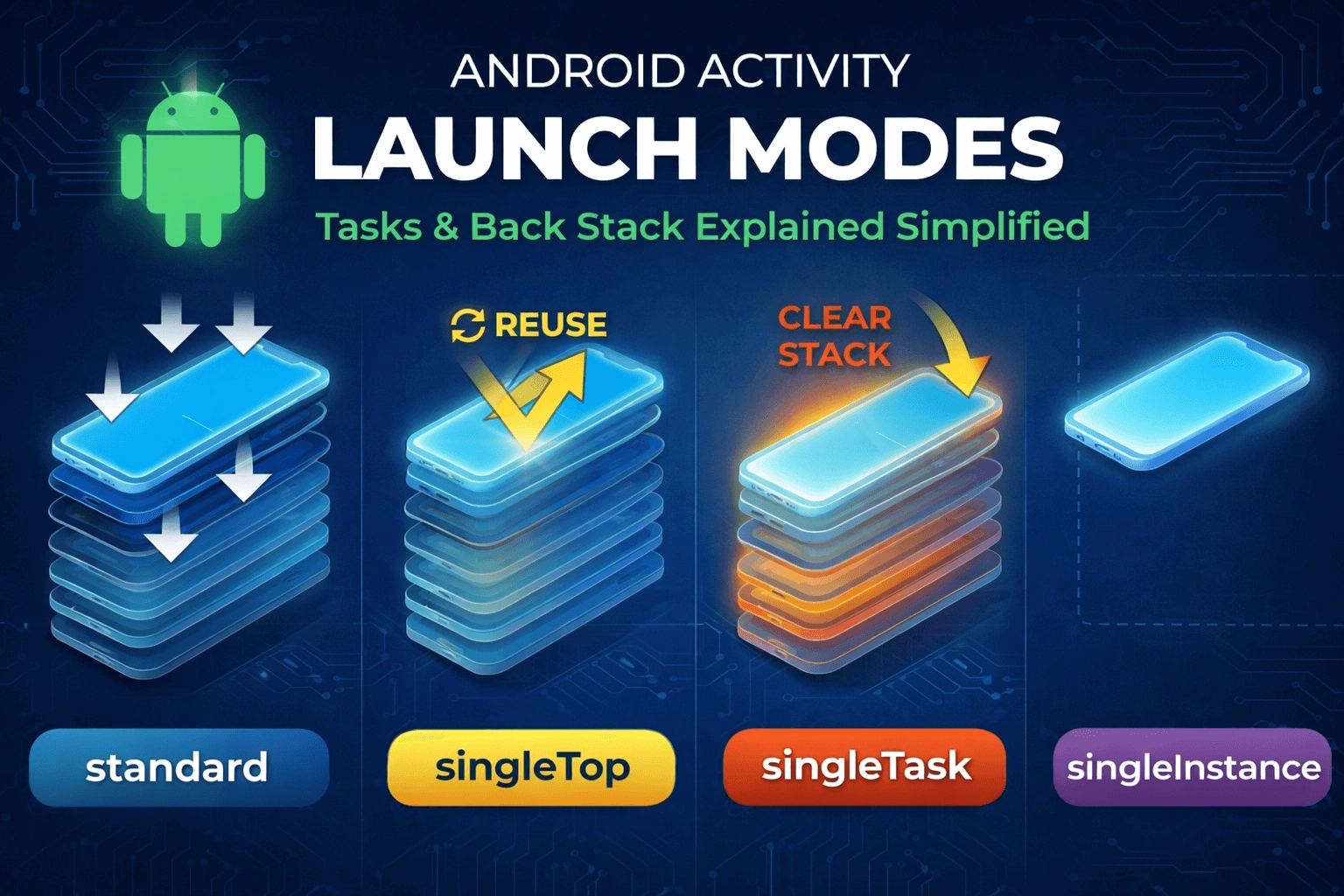
Android Activity Launch Modes — Complete Guide
If you are preparing for Android interviews or building real apps, understanding launch modes is very important.
Many navigation bugs happen because developers don’t understand how tasks and the back stack work.
Let’s start from the basics and go step by step.
What is a Task?
A Task is a group of activities (screens) that users use to complete a job.
Example:
You open an app:
Login screen
Home screen
Profile screen
All these screens belong to one task.
What is Back Stack?
Inside a task, Android maintains something called a Back Stack.
It works like a stack of plates.
Last screen opened → sits on top.
Example:
Open:
Home
Details
Payment
Stack looks like this:
Top
Payment
Details
Home
Bottom
When user presses Back:
Payment closes
Details appears
This system is automatically managed by Android.
What is Launch Mode?
Launch mode decides:
Should Android create a new activity instance?
Or reuse an existing one?
Should old screens be removed?
Should it run in a separate task?
Launch modes are defined inside AndroidManifest.xml.
Example:
<activity
android:name=".MainActivity"
android:launchMode="singleTop"/>
There are 4 launch modes.
The Four Launch Modes
1. standard (Default)
This is the default behavior.
Every time you start the activity → a new instance is created.
Even if it already exists.
Example:
In an e-commerce app:
Home → Product → Product → Product
If user taps the same product multiple times, multiple ProductActivity instances are created.
When to Use:
Detail screens
Forms
Normal navigation
This is used in most cases.
2. singleTop
If the activity is already at the top of the stack, Android will NOT create a new one.
Instead, it calls:
onNewIntent()
But if it is NOT on top → new instance is created.
Example:
You are already on Chat screen.
If notification for same chat arrives:
No new Chat screen is created.
Existing one handles new data.
Important:
It only works if activity is already at top.
3. singleTask
Only one instance of that activity exists in a task.
If it already exists:
Android brings it to front
Removes all activities above it
Calls
onNewIntent()
Example:
Stack:
Home → Search → Details → Settings
If Home is singleTask and launched again:
Stack becomes:
Home
Everything above it is removed.
When to Use:
App main screen
Dashboard
Deep link entry point
4. singleInstance
This is more strict than singleTask.
Activity runs in its own separate task
No other activities can join that task
Example:
Incoming call screen.
It should not mix with other app screens.
Important:
Rarely used in normal apps.
How Launch Modes Affect Back Button
Let’s understand simply:
Launch Mode | Multiple Copies? | Clears Stack? | Separate Task? |
|---|---|---|---|
standard | Yes | No | No |
singleTop | Sometimes | No | No |
singleTask | No | Yes | No |
singleInstance | No | Yes | Yes |
Launch Mode vs Intent Flags
Launch modes are defined in Manifest.
Intent flags are used in code.
Example:
intent.flags = Intent.FLAG_ACTIVITY_CLEAR_TOP
This can change back stack behavior dynamically.
Common flags:
FLAG_ACTIVITY_NEW_TASKFLAG_ACTIVITY_CLEAR_TOPFLAG_ACTIVITY_SINGLE_TOP
Real Interview Scenario
Scenario:
User flow:
Home → Product → Checkout
User taps app icon again.
What should happen?
Correct behavior:
Existing task should come to front.
Do NOT create duplicate Home.
Solution:
Use singleTask for launcher activity.
Common Mistakes Developers Make
❌ Using singleTask everywhere
→ Breaks normal navigation
❌ Not handling onNewIntent()
→ Old data shown
❌ Not understanding back stack behavior
Interview Questions
Basic
What is a task?
What is back stack?
Default launch mode?
Difference between singleTop and singleTask?
When is onNewIntent() called?
How do launch modes affect deep linking?
What happens if singleTop activity is not at top?
When should we avoid singleInstance?
Interview Tip
Android navigation is based on Tasks and Back Stack
Launch modes control how activity instances behave
Most apps use:
standardSometimes
singleTop
singleTaskandsingleInstanceshould be used carefully
If you explain this clearly in interviews with real examples, you will stand out as someone who understands Android internals — not just surface-level coding.
Comments (0)
No comments yet. Be the first to share your thoughts!
Leave a Comment
Get the latest updates
Join our newsletter and never miss an article.